How to Create a Free Wedding RSVP QR Code with Google Forms (2026 Guide)

Key Takeaway
Create a free wedding RSVP QR code using Google Forms and QRLynx. Guests scan the code on your invitation and RSVP in 30 seconds. Step-by-step guide with form questions, print specs, and design tips.
Why Digital RSVPs Are Replacing Paper Reply Cards
The paper RSVP card is going the way of the landline. 49% of couples now include QR codes on their wedding invitations, up from just 20% in 2022 (The Knot 2025 Real Weddings Study). That number is climbing fast — and for good reason.
Traditional RSVP reply cards cost between $0.50 and $1.50 per guest when you factor in the card itself, a pre-stamped return envelope, and postage. For a wedding with 150 guests, that's $75 to $225 just so people can mail back a tiny card with a checkmark (RSVPify). Then you wait. And wait. Half of them get lost, a quarter arrive with illegible handwriting, and you end up texting people anyway to confirm.
Digital RSVPs solve every one of these problems. According to RSVPify's research, digital RSVPs increase response rates by 22% compared to paper-only invitations. The data is clear: when you make it easy for guests, more guests respond. And 89% of guests now expect a digital RSVP option alongside or instead of paper (Article Biz). With 85% of couples using digital platforms for wedding planning (Wedding Venue Owners), offering a digital response path is no longer innovative — it's expected.
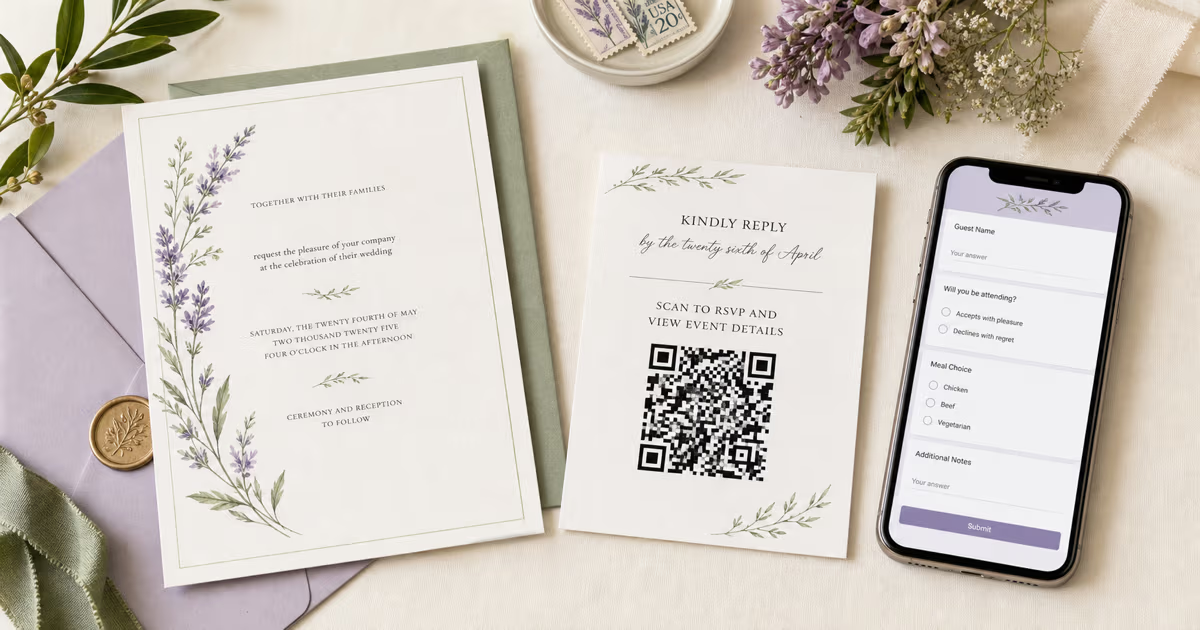
The concept is beautifully simple: print a QR code on your wedding invitation. A guest picks up the invitation, opens their phone camera, scans the code, and a Google Form opens. They tap their name, select "Joyfully Accept," choose their meal, and hit submit. The entire process takes 30 seconds. Their response lands instantly in a Google Sheets spreadsheet — organized, timestamped, and legible.
Google Forms is the perfect tool for this because it's free, requires no sign-up from your guests, and responses are automatically organized in a spreadsheet you can share with your wedding planner, caterer, and venue coordinator. In this guide, we'll walk through every step: what questions to include, how to create the form, how to generate a QR code that matches your invitation design, print specifications, and the mistakes that trip up most couples.
New to QR codes? Start with our complete guide to creating a QR code first, then come back here for the wedding-specific details.
Why Google Forms Works Perfectly for Wedding RSVPs
There are dozens of RSVP tools available — Zola, The Knot, WithJoy, RSVPify, Paperless Post — so why use Google Forms? Because for pure RSVP collection, it does exactly what you need for $0.
Google Forms is completely free with unlimited responses. There's no cap on how many guests can submit, no paid tier you'll eventually get pushed into, and no account creation required for the people filling it out. Your guests tap a link, fill in their answers, and submit. That's it. No app download, no account sign-up, no friction.
Every response automatically flows into a Google Sheets spreadsheet that you can sort, filter, and share with your wedding planner. Need to send the meal count to your caterer? Export the spreadsheet. Need to check if your college roommate responded? Search by name. Need your partner to see who's coming? Share the sheet with one click.
The numbers back this up: over 552,000 companies and organizations use Google Forms worldwide (Landbase), which means your guests have almost certainly encountered one before. There's zero learning curve. The drag-and-drop interface means you can build your entire RSVP form in 10 minutes with no technical skills whatsoever.
Now, let's be honest about the limitations. Google Forms won't win any beauty contests. The themes are functional, not gorgeous — you won't get the elegant custom designs that WithJoy or Zola offer. There's no built-in guest list management, no seating chart tool, and no automatic reminder emails for non-responders. If you want a full wedding website experience with registry integration, accommodation blocks, and event scheduling, platforms like Zola or The Knot are better suited.
But if your goal is simple — collect RSVPs, meal choices, and dietary restrictions in an organized spreadsheet — Google Forms does that flawlessly. And when you pair it with a QRLynx QR code on your invitation, the guest experience is seamless: scan, fill, done.
What Questions to Include in Your Wedding RSVP Form
This is where most couples either overthink it or underthink it. Too many questions and your completion rate drops. Too few and you're chasing guests for missing information the week before the wedding. Here's the sweet spot — the essential questions, why each one matters, and exactly how to set them up in Google Forms.
1. Guest Name(s) — Required
Use a short-answer text field. Label it something warm like "Your name(s) as written on your invitation" rather than a cold "Full Name." This matters because if a couple receives the invitation, both names should appear in the response so you can match it to your guest list. Making this required ensures no blank submissions.
2. Will You Be Attending? — Required
Multiple choice with two options: Joyfully Accept and Regretfully Decline. Skip the clinical "Yes / No" — your wedding invitation set a tone, and the RSVP should match it. Some couples add a third option like "Wouldn't miss it for the world!" for fun, but two options keeps things clean. This field drives your headcount, so it must be required.
3. Number of Guests in Your Party — Required
Use a dropdown menu with options: 1, 2, 3, 4. Set the maximum based on the number you wrote on their invitation. If you invited "The Johnson Family (4)," the dropdown should go up to 4. This prevents the awkward situation where someone RSVPs for 6 when you only invited 2. Add a note: "Please select the number indicated on your invitation."
4. Meal Preference — Conditionally Required
Multiple choice: Chicken / Fish / Vegetarian / Vegan / Other. Only include this if your venue actually offers meal choices — don't ask if it's a buffet or food truck situation. If you include an "Other" option, add a follow-up short-answer field for them to specify. In Google Forms, use the "Go to section based on answer" feature to show meal selection only if they selected "Joyfully Accept."
5. Dietary Allergies or Restrictions — Optional
Short-answer text field, not required. Add placeholder text like "e.g., gluten-free, nut allergy, kosher, halal." This is crucial for your caterer and can prevent a serious health issue at the reception. Keep it optional because most guests won't have restrictions, and a required field here just adds friction.
6. Song Request — Optional
Short-answer text field, not required. "What song will get you on the dance floor?" This is the fun question that gets guests excited about the reception. Share the list with your DJ or band. It also adds a personal, celebratory tone to an otherwise logistical form.
7. Special Needs — Optional
Short-answer text field, not required. "Any special accommodations we should know about? (wheelchair access, high chair, hearing assistance, nursing room)" This shows thoughtfulness and helps you coordinate with the venue. Guests with accessibility needs will appreciate being asked rather than having to bring it up themselves.
8. Message for the Couple — Optional
Paragraph text field, not required. "Any words of love or advice for the happy couple?" Sweet, optional, and gives you a collection of heartfelt messages to read together after the wedding. Some couples frame their favorites.
Pro tip: Keep your form under 8 questions total. Every additional question reduces completion rate. The 8 questions above are the maximum — if you can cut one (e.g., skip song request or special needs), do it. The goal is a form that takes 30 seconds to complete, not 3 minutes.
Step-by-Step: Create Your Wedding RSVP QR Code
From Google Form to printed invitation in 5 steps. The form is free. The QR code is free. Total cost: $0.
Create Your Google Form
Go to forms.google.com and click Blank form (or choose a template and customize it). Title the form with something personal — 'Sarah & Jake — Wedding RSVP' or 'The Martinez Wedding — Please Respond.' Add the questions from the list above: guest name, attendance, number of guests, meal preference, dietary restrictions, song request, special needs, and a message. Click the Settings gear icon and turn on Limit to 1 response — this prevents duplicates if a guest accidentally submits twice. Under Presentation, add a confirmation message: 'Thank you! We can't wait to celebrate with you.' Choose a theme color that matches your wedding palette.
Get Your Form Link
Click the Send button in the top right corner of the form editor. Click the link icon (chain link) to get the shareable URL. Check the Shorten URL box to get a cleaner link — this creates a shorter forms.gle URL instead of a long docs.google.com string. Copy this link. You can also test the form by clicking the eye icon (Preview) to see exactly what your guests will experience on their phones.
Create a Dynamic QR Code on QRLynx
Go to qrlynx.com and select the URL QR code type. Paste your Google Form link into the URL field. Toggle on Dynamic URL — this is critical for wedding invitations because it lets you change the form link later without reprinting a single invitation. If you realize you forgot a question, or need to swap to a different form, just update the URL on QRLynx and every printed QR code now points to the new form. Toggle on Track Scans to monitor how many guests have scanned the code, which helps you estimate RSVP engagement before the deadline.
Customize the QR Code for Your Invitation
Click Style and Colors to match the QR code to your wedding stationery. Set the foreground color to match your wedding palette — sage green, navy, dusty rose, burgundy, or classic black all work well as long as they are dark on a light background. Add your monogram, initials, or a heart icon as the center logo. Choose a pattern style: dots for modern weddings, rounded for romantic and organic themes, classic squares for traditional and formal events. Check the readability score and aim for 80% or higher. For invitation cards, ensure the QR code will print at minimum 0.8 by 0.8 inches — 1 by 1 inch is ideal.
Download and Add to Your Invitation
Click Download and choose SVG format for professional printing — SVG is a vector file that stays perfectly sharp at any size on any printer. Send the SVG file to your stationery designer or print shop. If printing at home, PNG at 1024px resolution works well. Place the QR code on your RSVP card, details card, or the back of the main invitation. Add a clear call-to-action next to the code: 'Scan to RSVP by June 15.' Below the QR code, include the full URL as text for guests who prefer typing: forms.gle/yourlink. Test the printed QR code on at least 3 phones (iPhone, Android, and one older device) before ordering your full print run.
Why Dynamic QR Codes Matter for Wedding Invitations
This is the single most important decision you'll make about your wedding QR code, and most couples get it wrong. The difference between a static and dynamic QR code is simple but significant: a static QR code permanently encodes a URL into the pattern itself, while a dynamic QR code redirects through a service like QRLynx, meaning you can change the destination anytime.
Wedding invitations are printed weeks or months before the event. That's a long time for things to change. What if you need to add a question to the form? What if you find a typo in the confirmation message? What if you decide to switch from Google Forms to WithJoy because your wedding planner prefers it? What if Google updates their Forms URL structure?
With a dynamic QR code, none of these scenarios require a reprint. Here's a real example: You sent 200 invitations in January. In February, you realize you forgot to ask about dietary restrictions — a guest with a severe nut allergy has no way to tell you. With a dynamic QR code, you create a new Google Form with the dietary question added, copy the new link, update the destination URL on your QRLynx dashboard, and instantly every printed invitation now opens the corrected form. No reprinting. No cost. No stress.
With a static QR code, that same scenario means reprinting 200 invitations or sending an awkward follow-up email saying "Actually, please use this new link instead." For invitations, where reprinting costs $200 to $500+ and the emotional stakes are high, a dynamic QR code is worth its weight in gold.
QRLynx includes 1 free dynamic QR code on the Starter plan — which is perfect if you only need one RSVP code. The Pro plan at $14/month gives you unlimited dynamic QR codes if you want separate codes for RSVP, photo sharing, and your wedding website. For a comprehensive look at all wedding QR code uses, see our complete wedding QR code guide.
Printing on Invitations: Size, Placement, and Format
Getting the QR code onto your printed stationery requires attention to a few technical details. Get these right and every guest scans successfully. Get them wrong and you'll discover the problem after 200 invitations have already shipped.
Size Requirements
The minimum QR code size for invitation cards is 1 x 1 inch (2.5 x 2.5 cm). If space is very tight — for example, on a slim response card — you can go as small as 0.8 x 0.8 inches, but that is the absolute minimum for reliable scanning. Anything smaller risks scan failures, especially on textured or colored paper. For a deep dive into sizing for every print format, see our QR code size guide for print.
Quiet Zone
The quiet zone is the white space border around the QR code pattern. It must be at least 0.25 inches (6mm) on all four sides. Do not let any design elements — borders, florals, monograms, or text — touch the QR code modules. The phone's camera needs this clear space to recognize where the code begins and ends. Violating the quiet zone is the number one cause of QR code scan failures on printed materials.
Best Placements on Wedding Stationery
- Separate RSVP card — the most common and best option. Center the QR code on the card with "Scan to RSVP by [date]" as the headline and the text URL below. The entire card is dedicated to one action: respond.
- Details card — works well if you're combining venue directions, accommodation info, and RSVP on a single insert. Place the QR code near the RSVP section with clear visual separation from other information.
- Back of main invitation — a clean, elegant option. The front has the formal invitation text, the back has the QR code centered with minimal text. Works especially well for modern, minimalist invitation designs.
- Bottom of invitation — possible but can feel cramped, especially on traditional formal invitations. Best for informal or modern invitation styles where the layout is less rigid.
File Format
Download as SVG for professional printing. SVG is a vector format — it scales infinitely without losing sharpness, which means your stationery designer or print shop can resize it to any dimension and it will remain crisp. If your printer specifically requires raster files, export as PNG at 300+ DPI at the final print size.
Paper and Printing Considerations
Dark QR modules on a light background is the golden rule for scanning reliability. Test contrast by scanning with 3 different phones before committing to a full print order: an iPhone, an Android phone, and an older device. Glossy paper can cause camera glare under certain lighting angles, which prevents scanning. Matte, uncoated, or textured card stock scans more reliably and is also the most popular choice for wedding stationery. If you're using letterpress or embossing, print a test sample first — deep impression can distort the QR modules.
The Hybrid Approach: Paper RSVP + QR Code
Here's the truth that tech-forward wedding blogs won't tell you: not every guest is comfortable scanning a QR code. Grandparents, older relatives, great-aunts and great-uncles, and some guests simply prefer the familiar ritual of filling out a paper card and dropping it in the mail. Forcing a digital-only RSVP can make these guests feel excluded — and the last thing you want is for Grandma to skip the RSVP because she couldn't figure out the technology.
The hybrid solution is simple and increasingly popular. 65% of couples now incorporate digital RSVP methods alongside or instead of paper (Article Biz). That means most couples are offering both options, not forcing one or the other.
How to implement the hybrid approach on your invitation suite:
- Include both a paper RSVP card and a QR code. The paper card goes in the envelope as usual, with a pre-stamped return envelope. The QR code appears on the paper RSVP card itself or on a separate details card.
- Add clear instructions: "RSVP by scanning the QR code below, or mail the enclosed reply card by [date]." This gives every guest a clear choice without judgment.
- Include the full URL as text below the QR code: "Or visit: forms.gle/yourlink." Some guests are comfortable with digital but prefer typing a URL rather than scanning. Three options covers virtually everyone.
For tracking purposes, you'll need to merge paper responses into your Google Sheets spreadsheet manually. When a paper card arrives in the mail, open the spreadsheet and add a row with the guest's information. This takes 30 seconds per card. Most couples find that 70-80% of responses come digitally and only 20-30% come by paper, so the manual entry is minimal.
The hybrid approach costs slightly more than digital-only (you still print the paper RSVP cards and pay return postage), but it ensures that every single guest — regardless of age, comfort level, or smartphone ownership — can respond to your invitation. That inclusivity is worth the small extra investment.
Google Forms Alternatives: How They Compare
Google Forms isn't the only option for wedding RSVPs. Here's how the major platforms stack up so you can choose the right tool for your wedding.
| Platform | Cost | Custom Questions | Guest Management | Design Quality | Dynamic QR? |
|---|---|---|---|---|---|
| Google Forms | Free | Unlimited | No (spreadsheet only) | Basic | No (use QRLynx) |
| WithJoy | Free | Yes | Yes (guest list, seating) | Beautiful templates | No |
| The Knot | Free | Limited | Yes | 100+ templates | No |
| Zola | Free | Yes | Yes (registry integration) | Modern | No |
| RSVPify | Free (100 guests) / $24/mo | Yes (conditional logic) | Yes (tracking, reminders) | Professional | Yes (built-in) |
| QRLynx + Any Platform | Free – $14/mo | N/A (links to any form) | N/A | QR customization | Yes |
When to choose Google Forms: You want a free, no-fuss RSVP collection tool and you're comfortable with basic styling. Best for couples who just need responses in a spreadsheet without the bells and whistles.
When to choose WithJoy or Zola: You want a full wedding website experience with beautiful design, guest list management, registry integration, accommodation blocks, and the RSVP form built into a cohesive branded experience. These platforms are free and feature-rich.
When to choose RSVPify: You're planning a large wedding (300+ guests) and need conditional logic in your form (different meal options per event, tiered events, plus-one approval workflows) and automated reminder emails for non-responders. The paid tier at $24/month is worth it for complex event management.
When to choose QRLynx + any platform: QRLynx isn't an RSVP tool — it's the QR code that connects your printed invitation to whichever platform you prefer. Create a dynamic QR code that links to Google Forms, WithJoy, Zola, The Knot, RSVPify, or any URL. The power of QRLynx is that you can switch platforms mid-planning without reprinting a single invitation.
Tracking RSVP Engagement with QR Code Analytics
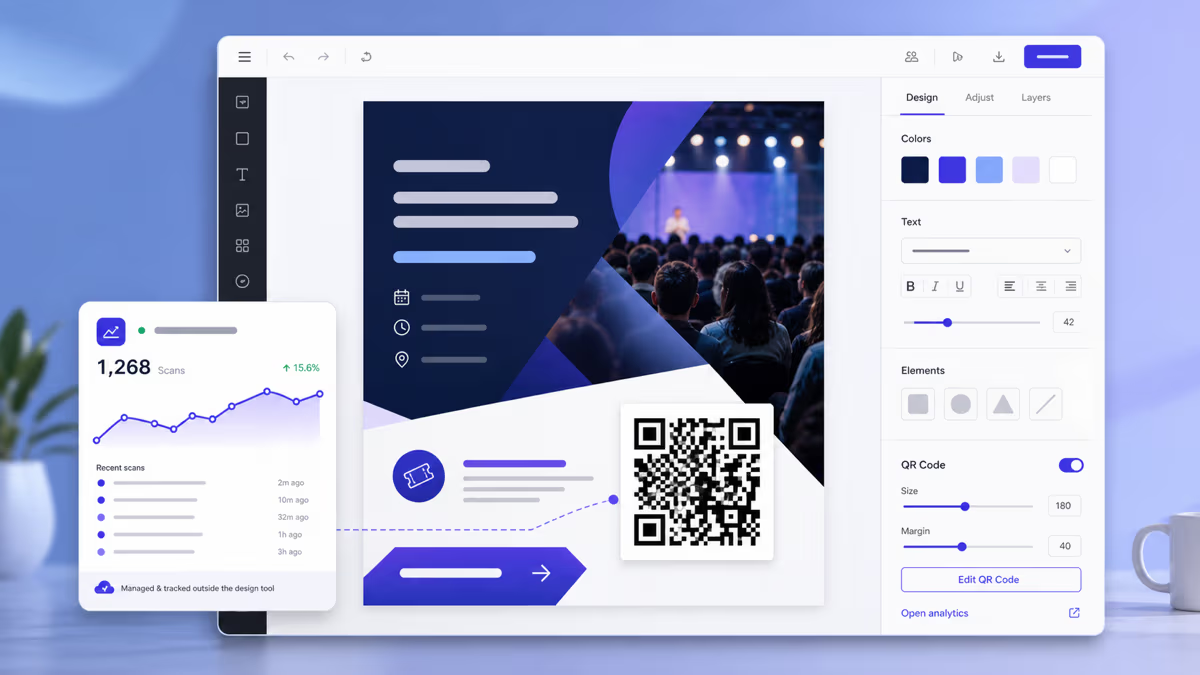
One of the hidden advantages of using a QRLynx dynamic QR code for your RSVP is the scan tracking data. With tracking enabled, you get a real-time view of how guests are interacting with your invitation — and that information is surprisingly useful for wedding planning logistics.
Here's the key metric: scans versus completions. If 80 people have scanned your QR code but only 55 RSVPs are in your Google Sheets spreadsheet, you know roughly 25 people scanned but didn't finish the form. These are your follow-up targets — they're interested enough to scan, but something stopped them from completing the RSVP. Maybe they got distracted. Maybe they planned to come back later and forgot. A gentle text message or email reminder to these guests will likely convert them. For more on scan analytics, see our guide to tracking QR code scans.
The scan timeline tells you when engagement peaks. Most scans happen within 48 hours of invitations arriving in mailboxes. If you see a big spike on Tuesday and Wednesday (typical mail delivery days), your timing was perfect. If scans trickle in slowly over two weeks, your invitations may have arrived at a bad time — consider sending a reminder.
Geographic scan data shows where your guests are engaging from. For weddings with a mix of local and out-of-town guests, this is helpful for accommodation planning. If you see strong scan numbers from a distant city, those guests are likely coming and you may need more hotel block rooms than expected.
Pro tip: Two weeks before your RSVP deadline, check the scan count against your guest list. If fewer than 60% of invited guests have scanned, send a friendly reminder via text or email. "Just a reminder — RSVP by [date] using the QR code on your invitation or visit [URL]." Timing this reminder based on actual scan data is far more effective than guessing.
8 Common RSVP QR Code Mistakes (and How to Avoid Them)
These are the errors we see most often. Every single one is preventable with 5 minutes of preparation.
1. QR Code Too Small
The minimum size for an invitation card is 1 x 1 inch. Anything smaller and you risk scan failures, especially on textured cardstock or in dim lighting. If your RSVP card design only has room for 0.5 inches, redesign the card — don't shrink the QR code. The size guide has specifications for every print format.
2. No Quiet Zone
The quiet zone — the white space border around the QR pattern — must be at least 4 modules wide (roughly 6mm or 0.25 inches). When decorative elements, text, or borders touch the QR code modules, the phone camera can't determine where the code starts and ends. This is the most common cause of "I scanned it but nothing happened."
3. Using a Static QR Code
Static QR codes encode the URL permanently into the pattern. If you need to change the Google Form link — add a question, fix a typo, switch platforms — a static code cannot be updated. You'd need to reprint every invitation. A dynamic QR code from QRLynx lets you change the destination URL anytime, which is essential for something printed months before the event.
4. Not Testing on Multiple Phones
A QR code that scans perfectly on your iPhone 16 might fail on your uncle's older Android phone. Before ordering your full print run, print a single test sample and scan it with at least 3 devices: a recent iPhone, a recent Android phone, and an older model (anything 3+ years old). Fix any issues before committing to the full order.
5. Glossy Paper Without Testing
Glossy and high-gloss paper finishes can create camera glare under certain lighting, preventing the QR code from scanning. Matte and uncoated cardstock are the safest choices and also happen to be the most popular for wedding stationery. If you're set on glossy, test under multiple lighting conditions — overhead lights, natural light, dim reception lighting.
6. No Call-to-Action Text
A QR code without context is just a mysterious square. Guests need to know what scanning will do. Always include a clear CTA next to the code: "Scan to RSVP," "Scan to respond by June 15," or "RSVP here." Three to five words is all it takes. Without this, a surprising number of guests will simply ignore the code.
7. No Response Deadline
Even with a QR code that makes responding effortless, guests will procrastinate without a deadline. Add "Please respond by [date]" prominently on the RSVP card, ideally right next to the QR code. Set the deadline 3-4 weeks before the wedding to give yourself time for follow-ups and final catering numbers.
8. No Text URL Fallback
Not every guest will scan the QR code. Some prefer typing a URL. Some have older phones with unreliable cameras. Some are simply more comfortable with a traditional approach. Always include the full URL in small text below the QR code: "Or visit: forms.gle/yourlink." This takes 2 seconds to add and ensures 100% of your guests can access the form, regardless of how they prefer to get there.
Wedding RSVP QR Code FAQ
Everything you need to know about using QR codes for wedding RSVPs with Google Forms.
Do guests need a Google account to fill out the RSVP form?
No. By default, Google Forms does not require respondents to sign in with a Google account. When you create your form, go to Settings and make sure the option to collect email addresses is turned off unless you specifically want it. The one caveat is the 'Limit to 1 response' setting, which does require respondents to be signed into a Google account so Forms can track who already submitted. For weddings, we recommend leaving this setting off and accepting the small risk of duplicate submissions — it is better than blocking guests who do not have Gmail accounts or are not signed in.
Is it tacky to put a QR code on a wedding invitation?
Not in 2026. With 49% of couples including QR codes on their invitations according to The Knot Real Weddings Study, it has become a mainstream and expected feature rather than a novelty. The key is design execution — a QR code in your wedding colors with your monogram as the center logo looks intentional and elegant. A plain black-and-white square hastily placed in a corner does look out of place. Match the QR code to your stationery palette using QRLynx's color and style customization, and it becomes a design element rather than an afterthought. Most modern invitation designers now expect to incorporate QR codes and can advise on placement.
Can I customize the look of my Google Form to match my wedding?
Partially. Google Forms lets you change the header image (your engagement photo works beautifully), theme color, and background color. You can select a color that matches your wedding palette and choose from a few font options. However, you cannot change the form layout, add custom CSS, or make it look like a premium wedding website. The customization is limited compared to dedicated platforms like WithJoy or Zola. For most guests, the form is open for 30 seconds — the design matters less than the functionality. If design is a top priority, consider using WithJoy or Zola for the RSVP form and QRLynx for the QR code on your invitation.
What if a guest cannot scan the QR code?
Always provide a fallback. Include the full URL in small text below the QR code on your invitation: 'Or visit: forms.gle/yourlink.' For guests who are not comfortable with either QR codes or typing URLs, include a traditional paper RSVP card with a pre-stamped return envelope. The hybrid approach — QR code plus text URL plus paper card — ensures every guest can respond regardless of their comfort with technology. You can also share the form link via text message or email to guests who contact you directly asking how to RSVP.
Should I use a static or dynamic QR code for my wedding RSVP?
Dynamic, without question. Wedding invitations are printed weeks or months before the event, and plans change — you might need to add a form question, fix a typo, or switch RSVP platforms entirely. A dynamic QR code from QRLynx lets you update the destination URL anytime without reprinting a single invitation. A static QR code permanently encodes the URL into the pattern, so any change to the link means reprinting everything. QRLynx offers one free dynamic QR code on the Starter plan, which is all most couples need for a single RSVP code.
How many questions should the RSVP form have?
Eight or fewer. The essential questions are: guest name, attendance (accept or decline), number of guests, meal preference, and dietary restrictions. Optional but recommended additions include a song request, special needs or accommodations, and a message for the couple. Every question beyond the essentials reduces your form completion rate. The goal is a form that takes 30 seconds to complete, not 3 minutes. If you find yourself adding questions about travel arrangements, lodging preferences, or event-specific details, put those on your wedding website instead and keep the RSVP form focused on the core information your caterer and planner actually need.
Can I set a deadline for RSVP responses?
Yes. Google Forms has a built-in feature to stop accepting responses after a certain date. Go to the Responses tab, click the three-dot menu, and toggle off 'Accepting responses' when your deadline arrives. You can add a custom message for late visitors such as 'RSVPs are now closed. Please contact us directly at [email or phone].' Set your deadline 3-4 weeks before the wedding to give yourself time to follow up with non-responders, finalize the headcount, and submit final numbers to your caterer and venue coordinator. You can also use Google Apps Script to auto-close the form at a specific date and time.
What size should the QR code be on my invitation?
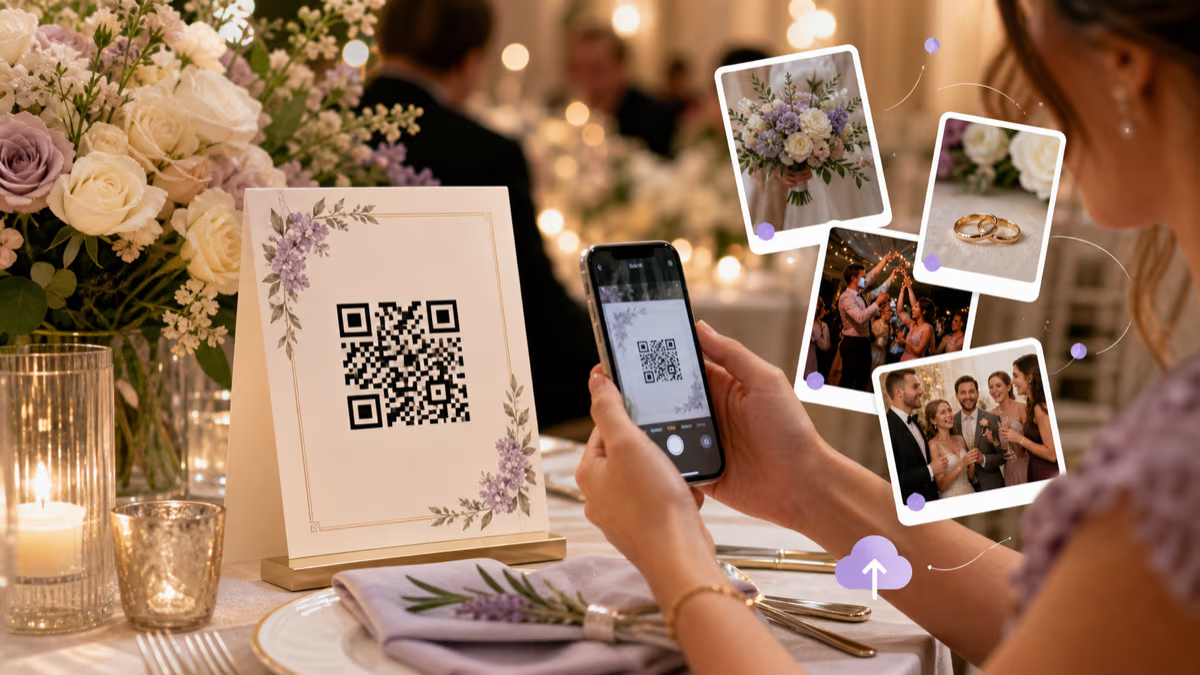
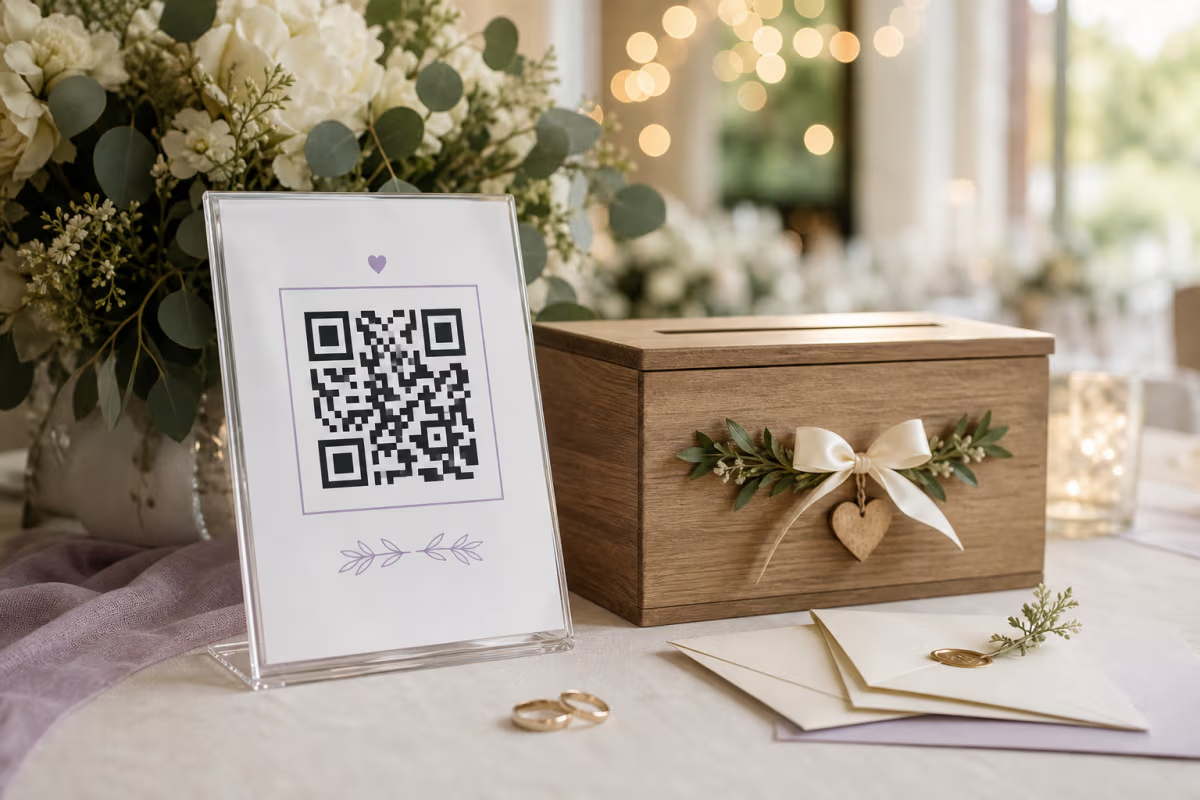
Minimum 1 x 1 inch (2.5 x 2.5 cm) for hand-held invitation cards. If space is extremely tight on a slim response card, the absolute minimum is 0.8 x 0.8 inches, but 1 inch is strongly recommended for reliable scanning on textured wedding cardstock. The quiet zone — the white space border around the code — must be at least 0.25 inches (6mm) on all four sides. For signage at the venue such as welcome signs or table displays, increase the QR code to 2-3 inches so guests can scan from a few feet away.
Will the QR code work if it is printed in color?
Yes, and colored QR codes often look better on wedding stationery than plain black and white. The rule is that the QR code foreground (the modules or dots) must be significantly darker than the background. Dark sage green on cream, navy on white, burgundy on ivory, and charcoal on blush all scan reliably. Light colors as the foreground — pastel pink, light gold, soft lavender — may not provide enough contrast for reliable scanning. Always check QRLynx's readability score to verify contrast before sending files to your printer, and test on multiple phones with a printed sample before ordering the full run.
Can I track who has and has not responded?
Google Forms shows you every response in the linked Google Sheets spreadsheet, but it does not integrate with a guest list to automatically show who has not responded. To track non-responders, create a master guest list in a separate sheet and use a VLOOKUP or MATCH formula to flag names that appear in your guest list but not in the RSVP responses. QRLynx scan tracking adds another useful layer — if 80 people scanned the QR code but only 55 submitted the form, you know roughly 25 guests scanned but did not complete the RSVP, and those are your priority follow-up targets.
What is the difference between QRLynx and RSVPify for wedding RSVPs?
They serve different purposes and work well together. RSVPify is a dedicated RSVP and event management platform — it hosts the form, manages your guest list, sends automated reminder emails, and offers conditional logic for complex events with multiple meals or tiered events. The full features cost $24 per month. QRLynx is a QR code generator that creates a customizable, trackable, dynamic QR code pointing to any URL — Google Forms, RSVPify, Zola, WithJoy, or any other platform. QRLynx does not host the RSVP form itself. Many couples use both: RSVPify for the form and guest management, and QRLynx for the beautifully designed invitation QR code with scan tracking analytics.
Can I change the RSVP form after sending invitations?
This is exactly why dynamic QR codes exist. If you used a dynamic QR code from QRLynx, you can change the destination URL to a completely new form at any time — no reprinting required. Every printed QR code on every invitation will automatically point to whatever URL is currently set in your QRLynx dashboard. You can also edit the existing Google Form directly — add questions, change wording, update the confirmation message — without changing the URL at all, since the form link stays the same. The only scenario where you are stuck is if you used a static QR code, which permanently encodes the original URL into the pattern and cannot be updated.
Your Free Wedding RSVP System: Google Forms + QRLynx
Let's recap what you're getting for $0. Google Forms gives you a free, unlimited RSVP collection tool with automatic spreadsheet organization. QRLynx gives you a free dynamic QR code that's customizable to match your wedding stationery, trackable so you can monitor engagement, and updatable so you can change the form link anytime without reprinting invitations.
The combination is powerful: a beautiful, wedding-themed QR code on your invitation that opens a clean form your guests complete in 30 seconds. Responses flow into a spreadsheet you share with your planner, caterer, and partner. Scan analytics tell you who's engaging and who needs a reminder. And if anything changes, you update the link with one click.
Don't forget the hybrid approach. Include the QR code for the majority of your guests who prefer digital, a text URL below the code for those who'd rather type, and a traditional paper RSVP card for anyone who prefers pen and paper. This three-option strategy ensures 100% of your guests can respond comfortably.
For more wedding QR code ideas beyond RSVPs — including photo sharing, WiFi, registry, and creating a wedding details hub — read our complete guide to QR codes for weddings. If you want to get the print sizing perfect, our QR code size guide for print covers specifications for every format from business cards to banners. And to understand the full picture of scan tracking, check out our QR code scan tracking guide.
Ready to create your free wedding RSVP QR code? Head to qrlynx.com, paste your Google Form link, customize the design to match your invitation palette, and download the SVG. Your guests will thank you for making it easy — and you'll thank yourself when every response is organized in a spreadsheet instead of scattered across your mailbox.