WiFi QR Codes for Restaurants and Cafes
Create a static WiFi QR code for a dedicated guest network, label it clearly, and test the finished sign on the phones and in the lighting your customers actually use.

Key Takeaway
Create a restaurant or cafe WiFi QR code in QRLynx. Cover guest networks, WiFi fields, captive portals, password changes, printing, and testing.
What does a restaurant WiFi QR code do?
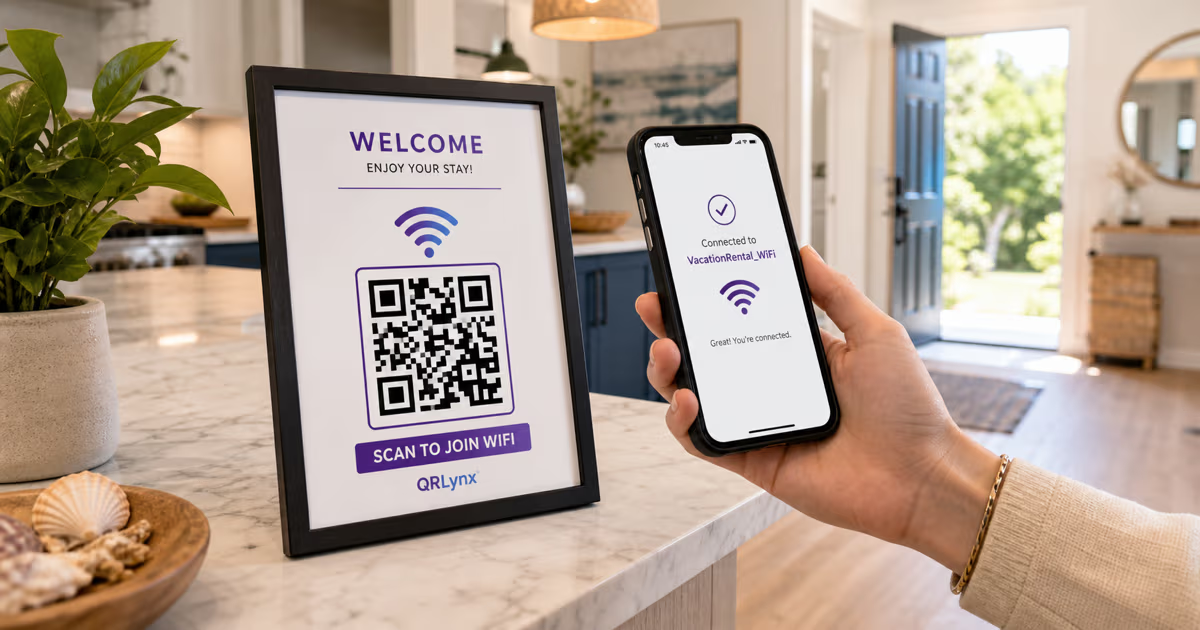
A restaurant WiFi QR code stores the network name, security setting, password, and hidden-network choice in the QR symbol. A compatible phone can read those details and offer to join the network, so the guest does not have to type a long password.
QRLynx provides a WiFi Access QR type for this job. It creates a static code, which means the credentials are stored directly in the printed pattern. It does not use a QRLynx redirect, record scan analytics, or let you change the password behind an already printed code. If the guest credentials change, create and print a new WiFi QR code.
This page focuses on the complete hospitality workflow: choose the right network, enter the exact fields in QRLynx, decide where the code belongs, and test the physical sign before putting it in front of guests.
Choose the connection path before making the code
| Restaurant setup | Useful QR path | What the guest experiences |
|---|---|---|
| Password-protected guest WiFi | QRLynx WiFi Access | The phone reads the SSID and password and may offer to join |
| Open guest WiFi | QRLynx WiFi Access with No Encryption | The phone reads the SSID; use only when the network operator intentionally provides an open network |
| Captive portal or voucher system | Follow the network provider's onboarding flow | The WiFi QR can identify a network, but it does not complete a separate portal form, terms screen, room code, or voucher step |
| Instructions or support page | QRLynx Website / Link | The guest opens a web page instead of receiving direct WiFi credentials |
Use a guest network, not the network that runs the business
Create the guest network in the router, access-point controller, or managed WiFi service before generating the QR. Keep point-of-sale systems, office computers, printers, cameras, and staff devices on the network intended for business operations. The exact isolation and bandwidth controls depend on the venue's equipment and network design.
Use a guest SSID that customers can recognize and that does not expose private operational details. Select the security setting that matches the network exactly. QRLynx currently offers WPA/WPA2, WEP, and No Encryption in the WiFi Access form. Do not choose a different label simply because it sounds stronger. A mismatch can prevent the join prompt from working.
The QR pattern is not a secret vault. A person who can scan or photograph it can decode the stored network details. Place the sign where customers are meant to use it, and update every printed copy when the credentials should no longer be shared.
How to create a restaurant or cafe WiFi QR code in QRLynx
Prepare the guest network first, then create and test the exact printed experience.
Prepare the guest network
Create or confirm the customer-facing network in the venue's router or managed WiFi system. Record the exact network name, password, security setting, and whether the SSID is hidden. Keep business systems on their intended operational network.
Open WiFi Access in QRLynx
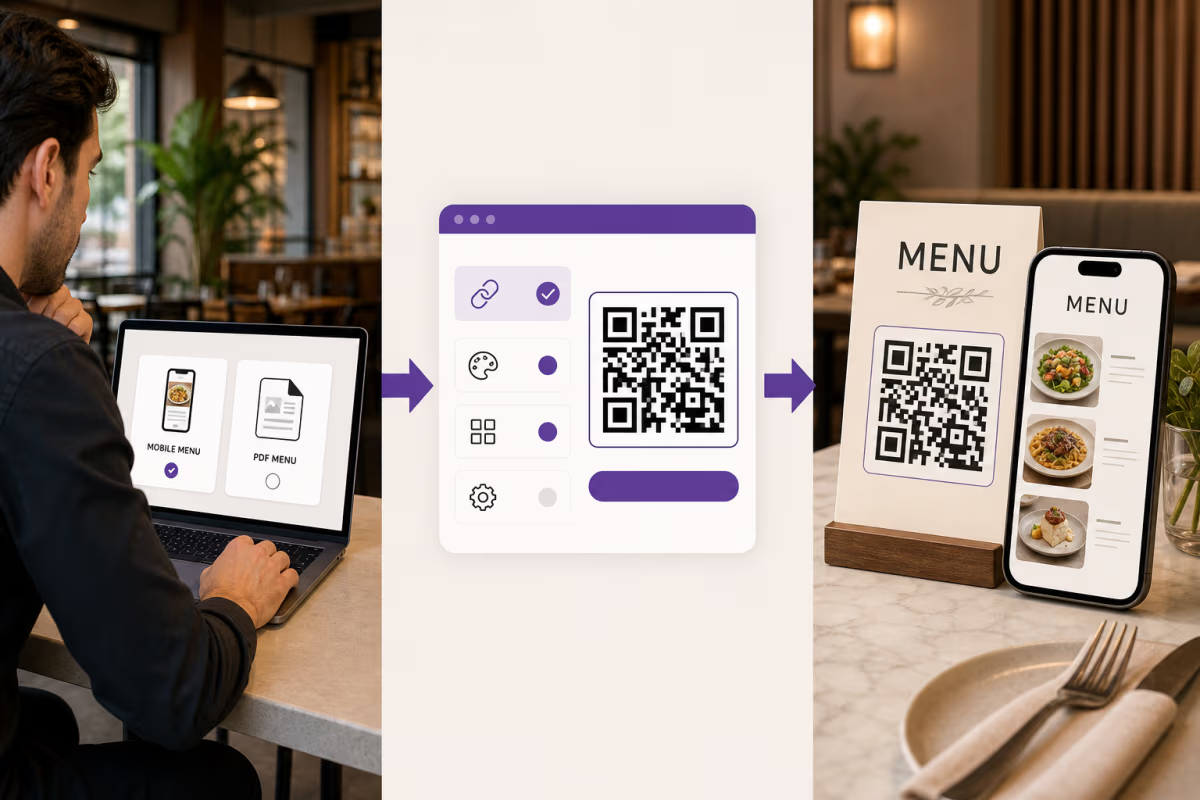
Open the QRLynx QR generator and choose WiFi Access. This is the static QR type designed to encode WiFi connection details directly.
Enter the exact network fields
Enter the guest SSID and password with the same capitalization used by the network. Choose WPA/WPA2, WEP, or No Encryption to match the actual setup, and select Hidden Network only when the guest SSID is configured as hidden.
Design and label the purpose
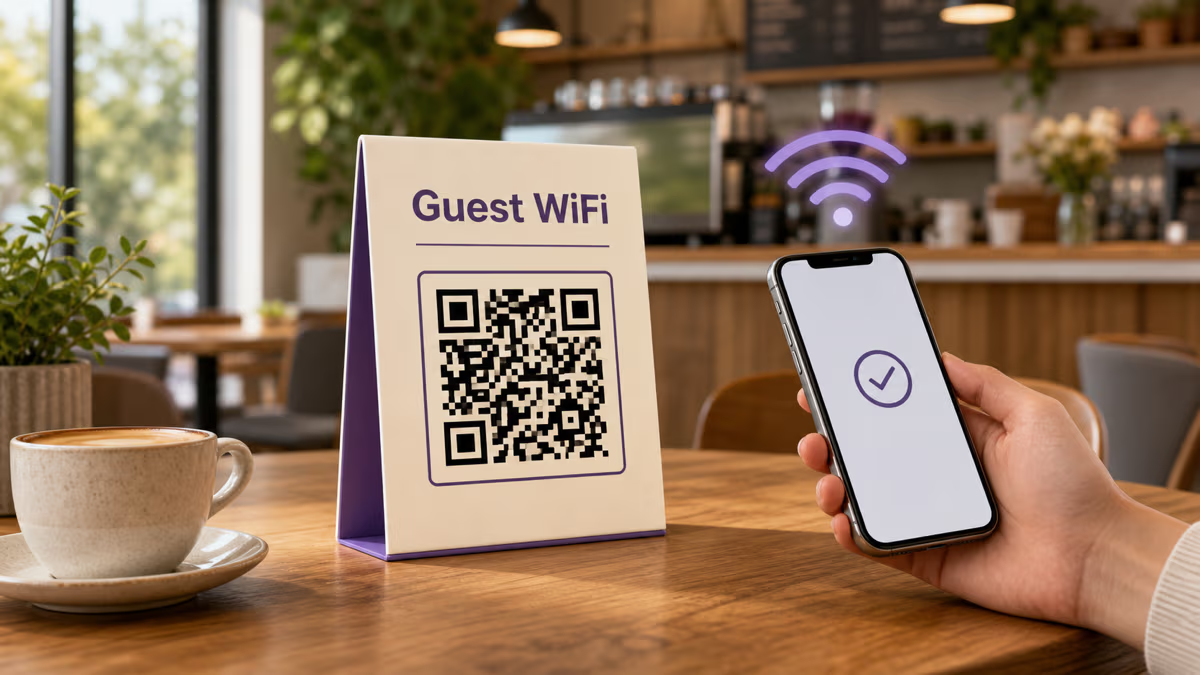
Use strong foreground and background contrast. Add the restaurant or cafe logo only when the code remains easy to scan. Put a clear nearby label such as Connect to guest WiFi so customers know what the scan will do.
Download the QR artwork
Download a raster format for ordinary in-house printing. Registered Starter accounts include PNG, JPG, WebP, and PNG HD downloads without a watermark. resolution-independent SVG and A4 PDF downloads begin with Starter+. Use the format accepted by the printer.
Print one proof in the final layout
Print one table tent, counter card, menu insert, or sign at the intended size and on the intended material. Keep a clear margin around the QR and avoid folds, glare, food, or drink covering it.
Test the full guest journey
Scan the physical proof with representative iPhone and Android devices under the venue's daytime and evening lighting. Confirm the displayed network name, successful connection, any captive-portal step, internet access, and a fallback route for guests who cannot scan.
Guest network details ready
Create the WiFi QR code in QRLynx
Enter the exact guest SSID, password, security setting, and hidden-network choice, then test one printed proof in the venue.
Where should a restaurant WiFi QR code go?
| Placement | Useful moment | Check before rollout |
|---|---|---|
| Table tent or table sticker | After guests sit down | Reach from the seated position, spill exposure, cleaning, and glare |
| Counter or pickup area | While ordering or waiting | Queue sightlines and enough time to scan without blocking service |
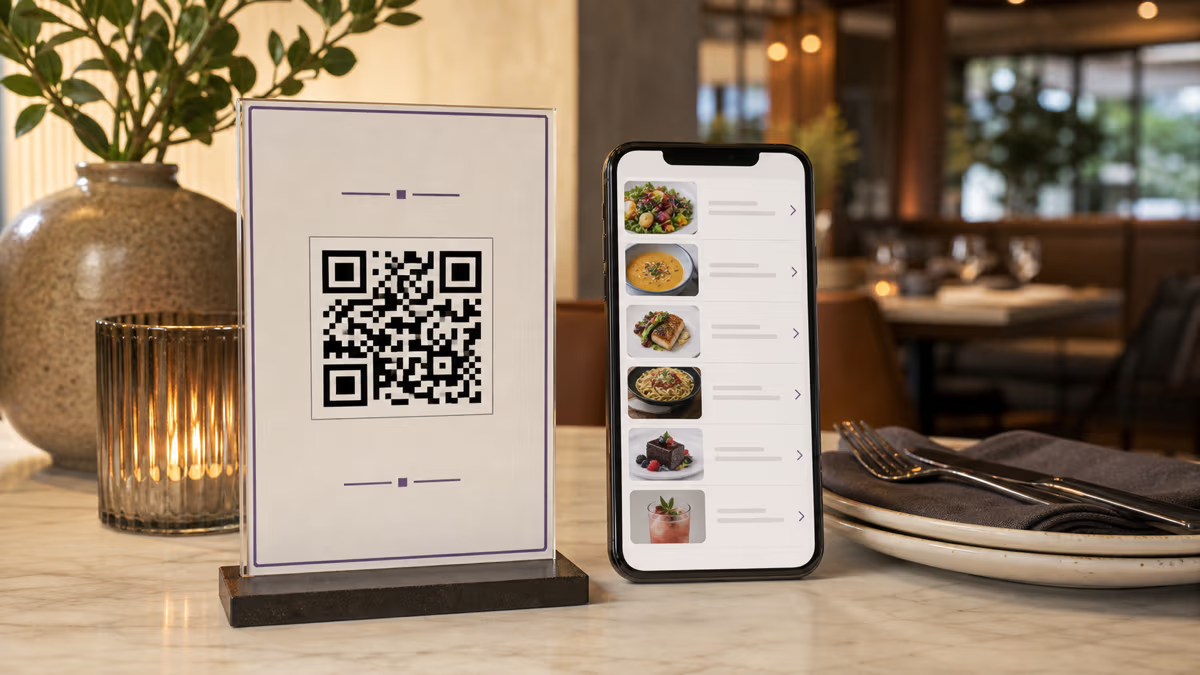
| Printed menu or menu holder | While guests read | Keep the WiFi action separate from the menu QR and label both clearly |
| Entrance or waiting area | Before seating | Network coverage at the sign and whether access is intended before a purchase |
| Receipt or takeaway insert | After payment | Whether the network is still useful at that point and whether the printed size scans |
Design for a working scan, not a decorative mockup
Use a dark QR on a light background or another combination with strong contrast. Keep text, borders, illustrations, and the edge of the printed piece outside the QR's clear margin. Matte or low-glare placement is often easier to scan than a reflection directly under a light.
There is no single size that works for every payload, camera, table, and viewing distance. Start with a generous close-range size, then approve the code through a physical test at the expected angle and distance. Increase the printed size when the code is farther away, the lighting is dim, the surface is curved, or the design contains a logo.
Label the action directly. Connect to guest WiFi is clearer than Scan me. If the venue also uses a menu QR code, give the two codes separate labels and enough visual separation that guests know which one to scan.
What happens when the WiFi setup changes?
| Change | Printed WiFi QR result | Action |
|---|---|---|
| Password changes | The printed code still contains the old password | Create a new code and replace every active print |
| SSID changes | The printed code still names the old network | Create a new code and replace every active print |
| Security setting changes | The encoded setting may no longer match | Create a new code with the matching QRLynx option and retest |
| Restaurant adds another location | The old code still contains the first location's credentials | Create and label a separate code for the new location |
| Only the sign design changes | The WiFi payload can remain the same | Re-export or reprint, then scan-test the revised design |
Keep WiFi, menu, review, and social actions distinct
A WiFi QR code has one job: share network connection details. A menu QR opens a menu, a Google Review QR opens the review flow, and a social QR opens a profile. Combining several actions on one printed piece can be useful, but each code needs its own label and visual space.
For a table tent, put the primary guest action on the most visible face. A restaurant might use Connect to guest WiFi on one side and View the menu on the other. The QRLynx table tent guide explains how to choose one main action and test the finished display.
Restaurant and cafe WiFi QR code questions
Is a WiFi QR code free to create in QRLynx?
Yes. WiFi Access is a static QRLynx QR type. The network details are stored directly in the symbol, so creating the code does not require a dynamic QR allowance or a redirect subscription.
Does a restaurant WiFi QR code expire?
The static symbol does not expire on a timer. It keeps the same encoded network details. It will no longer connect correctly if the SSID, password, security setting, or network availability changes.
Can QRLynx track WiFi QR code scans?
No. QRLynx WiFi Access is static and connects without a QRLynx redirect, so QRLynx does not record its scans. A Website / Link QR can measure visits to an instruction page, but it does not directly join the WiFi network.
Can a WiFi QR code complete a captive portal or voucher login?
No. The QR can carry WiFi connection details, but a separate captive portal, terms screen, room number, customer login, or voucher step still follows the network provider's workflow.
Does the QR code hide the restaurant WiFi password?
It avoids printing the password as readable text, but the credentials remain encoded in the QR and can be decoded by someone who can scan or photograph it. Use a customer-facing guest network and place the code where access is intended.
Which encryption options does QRLynx offer for WiFi codes?
The current QRLynx WiFi Access form offers WPA/WPA2, WEP, and No Encryption. Choose the option that matches the guest network. QRLynx does not currently show a separate WPA3 option in this form.
Do guests need a separate QR scanner app?
Many current iPhone and Android devices can read QR codes through the built-in camera or system QR scanner. Device behavior varies, so test the physical sign with representative phones and provide the network name or staff help as a fallback.
Should every restaurant location use the same WiFi QR code?
Only when the locations genuinely use the same SSID, password, security setting, and intended access. In most multi-location setups, create and label a separate code for each venue's guest network.
What should I do after changing the guest WiFi password?
Create a new WiFi Access QR in QRLynx, print one proof, verify the connection on representative phones, then replace every active copy of the old code.
Can I put a restaurant logo on the WiFi QR code?
Yes. Keep the logo restrained, preserve strong contrast and a clear margin, and test the final printed design. A logo or higher error correction does not replace a physical scan and connection test.
Sources and verification
QRLynx workflow details were checked against the current WiFi Access registry, form fields, value encoder, validation, and download contract. Platform behavior was checked against Google's Android WiFi help and Apple's iPhone WiFi sharing guide. Router isolation, captive portal, and access policies remain the responsibility of the restaurant's network operator and equipment provider.